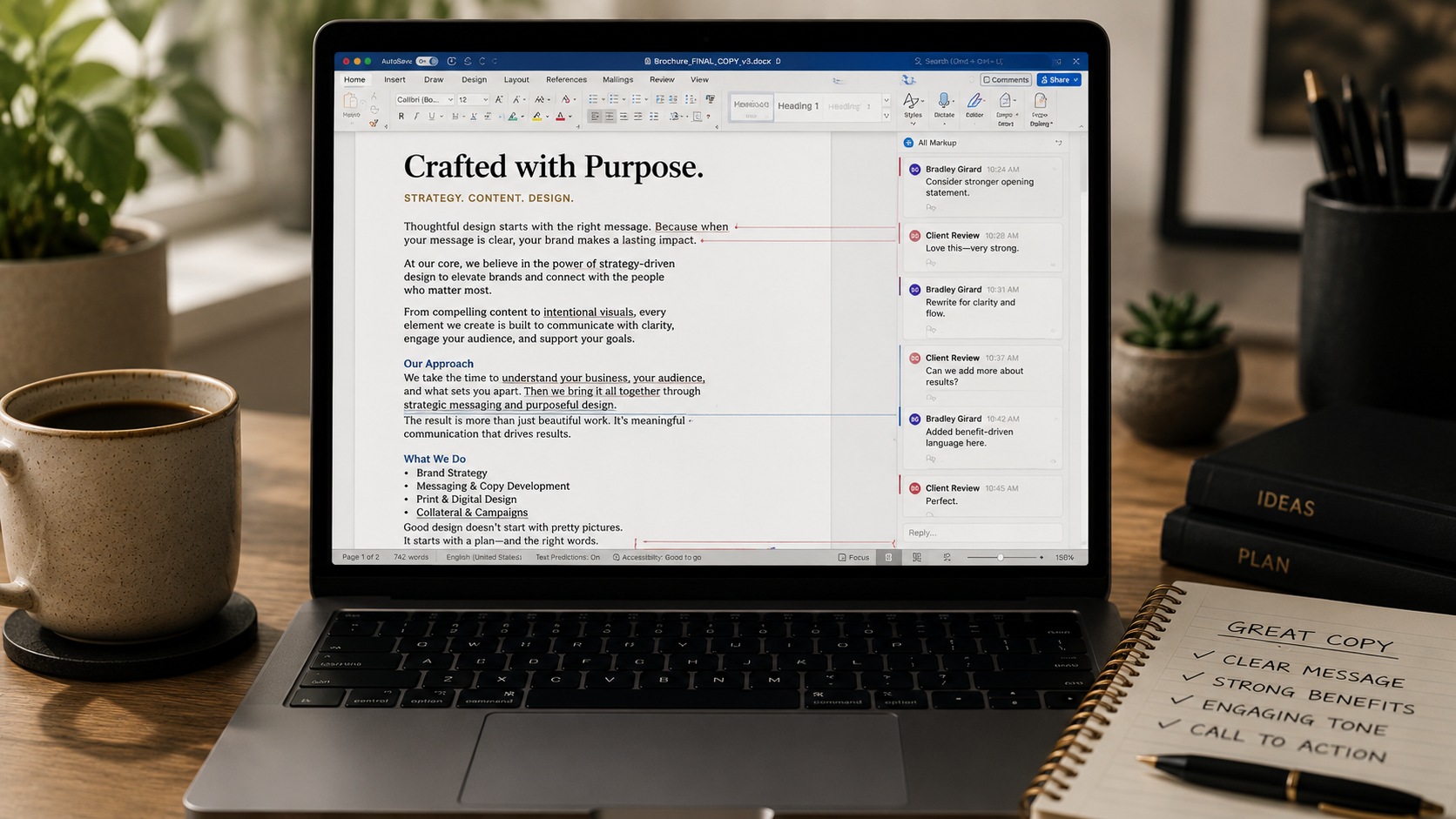

How to use Adobe Acrobat’s commenting tools to provide clear, organized feedback that saves time and reduces revisions.
Learning how to mark up PDF proofs using Adobe Acrobat’s Comment tools is one of the fastest and most effective ways to communicate design and copy changes. Rather than describing edits in an email or marking up a printed proof, you can place comments directly on the artwork, highlight text, suggest replacements, draw arrows, and identify exactly what needs to be changed. This eliminates guesswork, reduces unnecessary revision rounds, and helps ensure every requested change is captured accurately. Best of all, you do not need to own Adobe Acrobat Pro to use these features. Adobe offers the free Acrobat Reader, which includes the commenting tools needed for most design reviews. You can download it here: Adobe Acrobat Reader. Below, we’ll introduce the basic commenting tools and show you how to use them to provide clear, organized feedback that keeps your project moving efficiently. If you would like a more in-depth lesson, you can view this video.
Click on images below to enlarge.
Comment Display, Options, and Status
Adobe Acrobat displays your feedback in two places: as floating comment boxes on the page and in the Comments Panel on the right. The comment boxes show exactly where your feedback applies, while the Comments Panel keeps every comment organized in one convenient list.
Comments aren’t just for revisions, they’re also a great way to communicate approvals. Add notes such as “Approved,”“Looks Great,” or “Ready to Print” to let your designer know a page or element has been reviewed and accepted.
Each comment also includes options to Edit, Reply, Copy, or Delete comments, along with other actions available under More Options. You can also Set Status to Completed, Accepted, Rejected, or Canceled to track the progress of revisions.
Pro Tip: Instead of deleting resolved comments, update their Status to Completed or Accepted. This keeps a clear record of the review process and helps prevent overlooked revisions.


The insets above show the Floating Comment Box and Comments Panel. The insets to the right highlight the Comment Options menu and the Set Status feature used to track approvals and revision progress.
The insets above show the Floating Comment Box and Comments Panel. The insets below highlight the Comment Options menu and the Set Status feature used to track approvals and revision progress.


Add a Comment (Sticky Note)
The Add a Comment (Sticky Note) tool is one of the most commonly used features in Adobe Acrobat. Simply click anywhere on the PDF where you want to provide feedback, and a comment box will appear. Use Sticky Notes to explain design changes, ask questions, provide additional instructions, or clarify revisions that can’t be easily marked directly on the page.
This tool is ideal for comments such as:
- “Can we use a different photo here?”
- “Please update this headline to our new tagline.”
- “Move this section below the testimonials.”
- “I think this color should better match our brand blue.”
Because each note is anchored to a specific location on the page, your designer can quickly understand exactly what you’re referring to, reducing confusion and helping revisions move faster and more accurately.

Pro Tip: Keep each Sticky Note focused on a single change. Multiple comments in one note can make revisions harder to track and increase the chance something gets overlooked.
Replace Selected Text
The Replace Selected Text tool is the quickest and most accurate way to suggest copy changes within a PDF. Simply highlight the text you want to change, then enter the replacement wording in the comment box. Acrobat will clearly display both the original text and your suggested revision, making it easy for your designer to update the document without guessing what should be changed.
This tool is ideal for:
- Correcting spelling, grammar, or punctuation.
- Updating names, dates, phone numbers, or website URLs.
- Revising headlines or body copy.
- Replacing outdated information with new content.
Using Replace Selected Text helps eliminate confusion by showing exactly what should be removed and what should take its place, reducing revision time and minimizing errors.

Pro Tip: Copy and paste your replacement text whenever possible instead of retyping it. This helps prevent accidental typos and ensures the new wording is exactly as intended.
Insert Text
The Insert Text tool is used when you want to add new words or characters within existing text. Simply click where the new text should be inserted, then type the additional wording in the comment box. Acrobat clearly indicates the insertion point, making it easy for your designer to see exactly where the new text belongs.
This tool is ideal for:
- Adding a missing word or sentence.
- Inserting a phone number, email address, or website URL.
- Adding a bullet point to an existing list.
- Including a disclaimer or additional information within existing copy.
Because the insertion point is clearly marked, there is no guesswork about where the new text should appear, helping ensure revisions are made quickly and accurately.

Pro Tip: Use Insert Text for adding additional words into existing copy. Using the appropriate tool makes your comments clearer and helps speed up the revision process.
Add Text Comment
The Add Text Comment tool allows you to place a comment directly on the PDF without attaching it to existing text. Simply click anywhere on the page where you want to provide feedback, and a text comment will appear. This tool is ideal for adding notes about the design, layout, or content when there isn’t a specific word or object to annotate.
This tool is ideal for:
- Suggesting a new section or call-to-action.
- Providing design direction or layout suggestions.
- Recommending additional content or imagery.
- Explaining changes that affect an entire area of the page.
Because the comment is placed exactly where you’re referring to, your designer can quickly understand the context of your feedback and make revisions more efficiently.

Pro Tip: Use Add Text Comment for general feedback or instructions about an area of the page whether it is copy, design element, and/or photo.
Highlight Text
The Highlight Text tool lets you draw attention to specific words, sentences, or paragraphs within your PDF. Simply drag your cursor over the text you want to highlight, then add a comment explaining what you’d like changed. Highlighting makes it easy to identify the exact content you’re referring to without leaving any ambiguity.
This tool is ideal for:
- Flagging copy that needs to be reviewed or revised.
- Identifying text that may be unclear or inaccurate.
- Calling attention to important information.
- Requesting changes without immediately replacing the wording.
By highlighting the exact text and including a comment, your designer can quickly locate the content and understand what action is needed.

Pro Tip: Always include a brief comment with your highlight, such as “Please verify this statistic,” or “Update to current pricing.” A highlight alone tells your designer where to look, but a comment explains what needs to be done.
Underline Text
The Underline Text tool allows you to mark specific words or phrases that require attention while keeping the surrounding copy intact. Simply underline the text and add a comment describing the change or question you have. This is a great way to draw attention to content that may need clarification, verification, or revision.
This tool is ideal for:
- Identifying text that should be reviewed or updated.
- Calling attention to names, dates, or technical information that needs verification.
- Suggesting a revision without replacing the text.
- Emphasizing a word or phrase that requires discussion.
Using the Underline Text tool helps your designer quickly locate the exact copy you’re referring to while your accompanying comment explains the requested change.

Pro Tip: Pair your underline with a clear comment, such as “Verify this product name,” “Update this date,” or “Consider stronger wording here.” The more specific your feedback, the faster and more accurately revisions can be completed.
Strikethrough Text
The Strikethrough Text tool is used to indicate that specific words, sentences, or paragraphs should be removed from the document. Simply select the text you want deleted, and Acrobat will apply a strikethrough to clearly show what should be omitted. You can also add a comment if you’d like to explain why the content should be removed.
This tool is ideal for:
- Deleting outdated or unnecessary copy.
- Removing duplicate content.
- Eliminating incorrect information.
- Shortening text to improve readability or fit the layout.
Using the Strikethrough Text tool provides a clear visual indication of what should be deleted, eliminating any guesswork and making revisions faster and more accurate.

Pro Tip: Replacing text instead of deleting it? Use Replace Selected Text to show both the original copy and the new copy in a single comment.
Drawing Markup Tools
Adobe Acrobat’s Drawing Markup (Freehand, Arrow, Line, Rectangle, Oval & More) tools allow you to visually point out design elements, layout concerns, and image revisions directly on the PDF. Whether you’re circling an object, drawing an arrow to a specific area, or sketching a quick idea with the freehand pencil, these tools help eliminate confusion by showing your designer exactly what you’re referring to.
Drawing Markup tools are ideal for:
- Circling images or graphics that need attention.
- Drawing arrows to indicate where an element should move.
- Marking areas that should be enlarged, reduced, or repositioned.
- Sketching simple layout ideas or visual concepts.
- Identifying alignment, spacing, or design concerns.
While these tools are excellent for pointing out visual changes, they work best when paired with a comment. A quick note such as “Move logo here,” “Increase white space,” or “Replace this image” provides the context your designer needs to make accurate revisions.

Pro Tip: Use drawing tools to show what you’re referring to and comments to explain what you’d like changed. Combining the two creates the clearest, most efficient feedback and helps minimize revision time.
Brad’s Take
After reviewing creative projects for more than three decades, I’ve found that one of the biggest time savers isn’t better software, it’s better communication. The clearer the feedback, the smoother the revision process, and the better the final result.
Using Adobe Acrobat’s commenting tools gives us a common language for reviewing creative work. Instead of trying to describe changes in an email or over the phone, you can point directly to what you’d like adjusted, making every revision more accurate and efficient.
At BGS Connect, I believe the best creative work comes from collaboration, not guesswork. A few extra minutes spent marking up a PDF can save hours of revisions, reduce misunderstandings, and keep your project moving forward with confidence.